 true77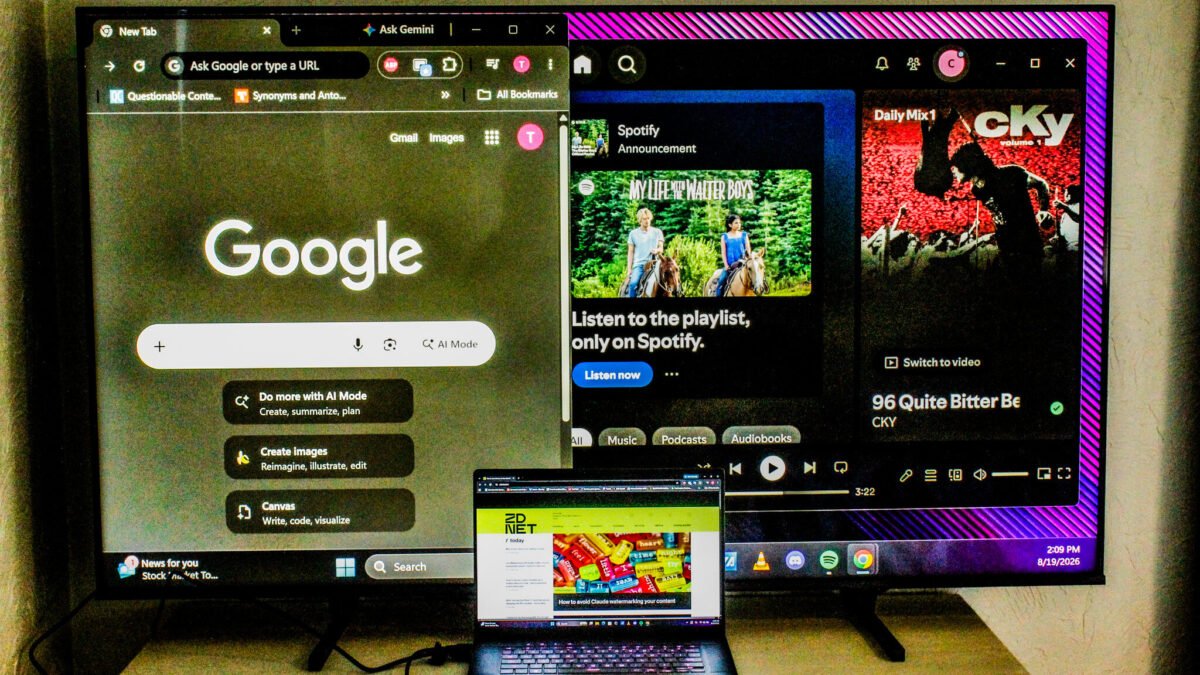
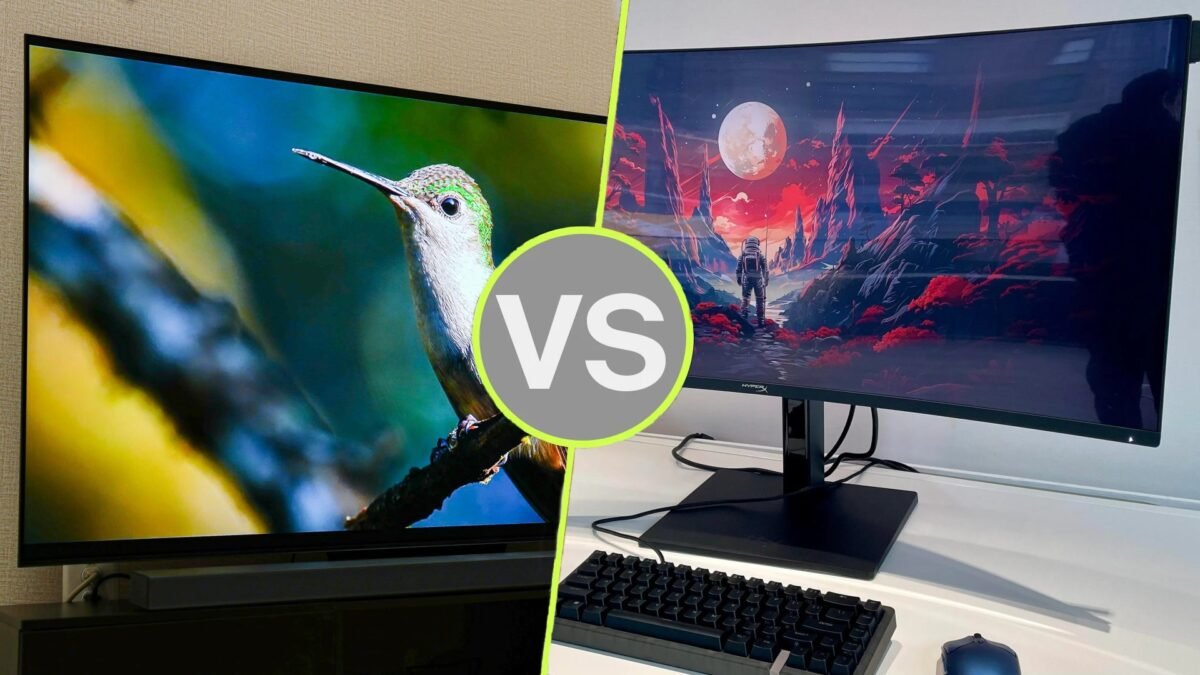
Purchasing a dedicated computer monitor can be quite expensive, particularly for those seeking specialized displays for gaming or creative tasks like video editing or animation. This cost is significantly higher for premium options such as OLED displays or 4K resolutions.
Also: How I turned my old Android phone into a streaming stick for free
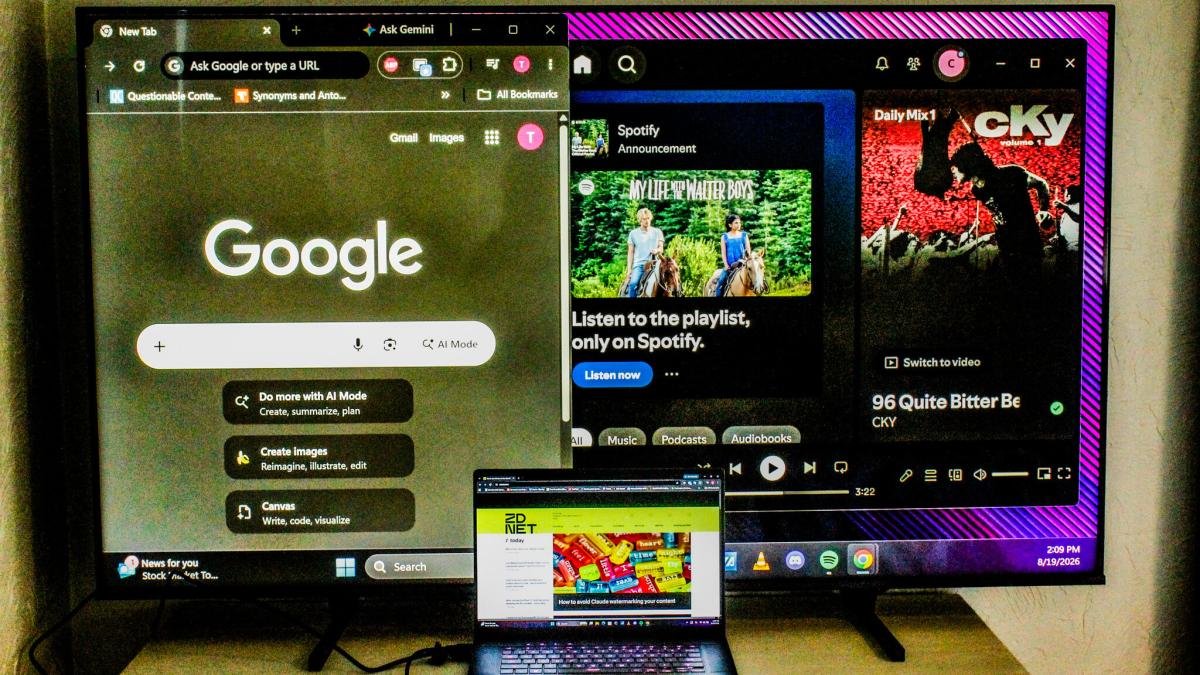
Fortunately, there’s a cost-effective alternative. You can easily use your TV as a monitor for your laptop or desktop computer, serving as either your primary display, a part of a dual-monitor setup, or even as a backup when needed. Depending on the connection method you choose, this could be entirely free of charge.
This guide outlines how to set up your TV as a monitor for various operating systems, including Windows, Mac, ChromeOS, and Linux, whether for a temporary fix or a long-term solution.

Connecting Your TV as a Monitor
The fastest way to connect your computer to your TV is through a standard HDMI cable. Simply select the appropriate input option from your TV’s menu settings. Once everything is connected and powered up, your TV will display an almost exact duplicate of your desktop.
If your laptop or PC utilizes Thunderbolt or DisplayPort connections, you will need to acquire a USB-C-to-HDMI or a DisplayPort-to-HDMI adapter, which typically costs between $10 and $15. Keep in mind that the TV will still depend on HDMI, which means you won’t achieve the high-speed data transfers that a monitor with a DisplayPort or Thunderbolt connection would provide.
Also: How to disable ACR on your TV (and why it makes such a big difference when you do)
Wireless connections are also an option. Most modern smart TVs support Apple’s AirPlay or Google Cast for wireless screen mirroring. However, using these methods may result in input lag or resolution issues due to the compression and transmission processes involved. If you own a newer Samsung or LG TV, you can enable remote PC access by adjusting settings on your computer and utilizing the dedicated remote access application with your device’s IP address.
To find your IP address, follow these steps:
Finding Your IP Address
Windows
- Press the Windows key > Type cmd > Open Command Prompt > Type ipconfig and press Enter > Look for the IPv4 address
OR
- Start > Settings > Network & Internet > Wi-Fi/Ethernet > Select network > Scroll to find IP address
Mac
- Apple menu > System settings > Network > Wi-Fi/Ethernet > Details > Find IP address
ChromeOS
- Click on the clock > Wi-Fi/Ethernet > Information > Find IP address
Linux
GUI option
- Settings > Wi-Fi OR Network > Click gear icon > view IP address
Terminal option
- Run hostname -I > Print internal IP address
OR
- Run ip addr > Identify active network (eth0 for wired or wlan0 for wireless) > Locate inet
FOR LEGACY DISTROS
- Run iconfig to view network details
Adjusting Display Settings
To use your TV as an additional screen for your PC setup, you’ll need to access your display settings and adjust your monitor configuration.
Windows
- Right-click on Desktop > Display Settings > Arrange screens > Adjust scaling options
Mac
- Apple menu > System Preferences > Displays > Arrangement > Resolution options
ChromeOS
- Click on the clock > Click gear icon > Device > Displays > Layout, Display size, etc.
Linux
GUI option
- Settings > Displays > Select screens > Resolution, Refresh rate, Orientation > Scale > Apply
Terminal option
- Type xrandr > Confirm –output <display_name> > Confirm –mode <resolution> (e.g. 1920 x 1080 or 3840 x 2160) > Confirm –rate <hz> > Arrange monitors –output <secondary_display> –<direction> of <primary_display>
Optimizing Picture Quality
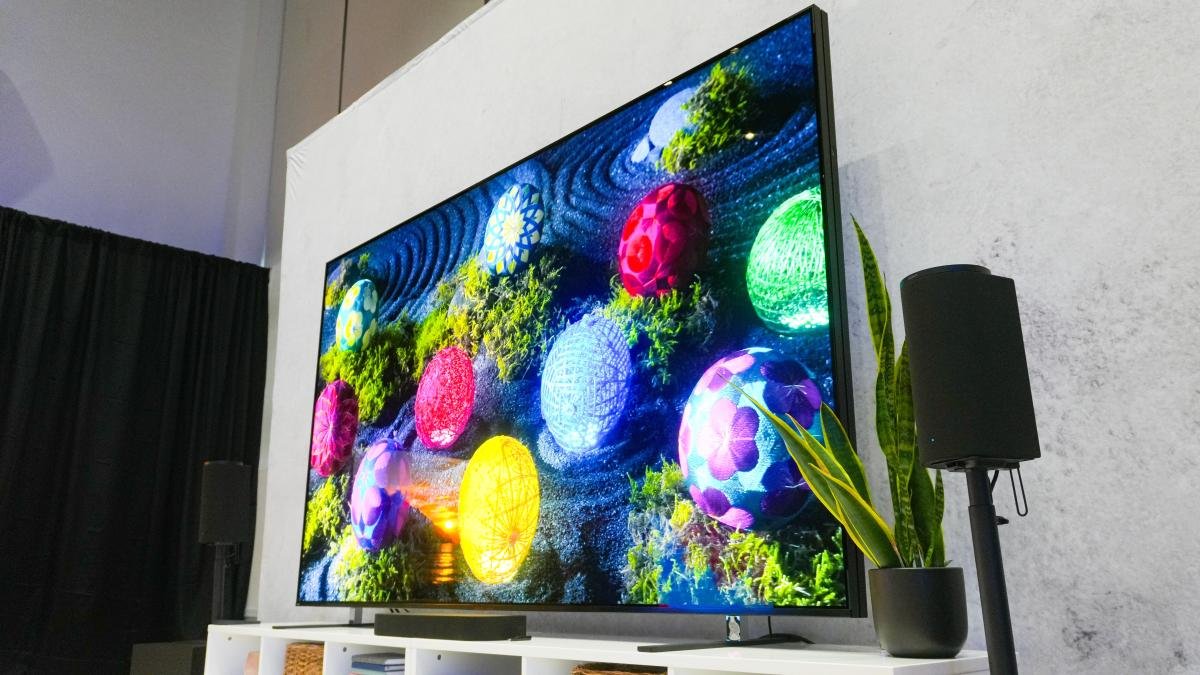
The key to achieving the best picture quality is to ensure the resolution output of your computer matches that of your TV. If your system supports native 4K resolution, you’re all set. However, if your device only supports 1080p or lower, you’ll need to adjust your TV’s output accordingly to prevent any blurriness or pixelation. This can be done by navigating to:
- Settings > Display OR Picture > Device preferences > Resolution OR Output Resolution > Select 1080p or Auto
If your TV includes a PC picture mode, this is the ideal setting to minimize input lag while maintaining a consistent refresh rate, whether you are connected via HDMI, wirelessly, or using remote access.
Also: The best Hisense TVs of 2026: Expert tested for streaming, gaming, and more
In the absence of a PC mode, the Game Mode, which often features low latency, rapid response times, enhanced refresh rates, and VRR support via AMD FreeSync or Nvidia G-Sync, is a viable alternative. While it may not be flawless, with occasional hiccups in performance, it can still provide an enhanced experience as your computer and TV manage the data signals transmitted between them.
With some patience, your smart TV can serve as an effective temporary solution for various tasks or even become a permanent part of your multi-monitor configuration for gaming or streaming purposes.
Conclusion
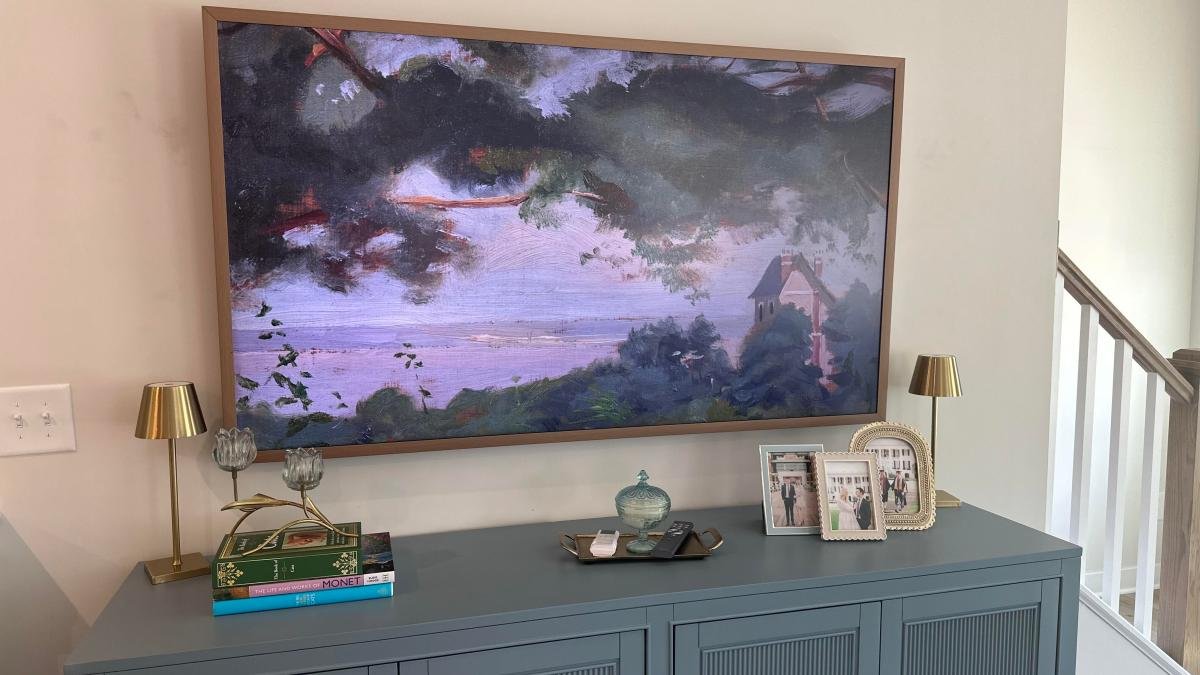
Using a TV instead of a dedicated computer monitor has significant advantages, primarily due to the larger screen size at a more affordable price. High-end monitors with features like ultra-wide displays, 4K resolution, and rapid refresh rates can be quite costly.
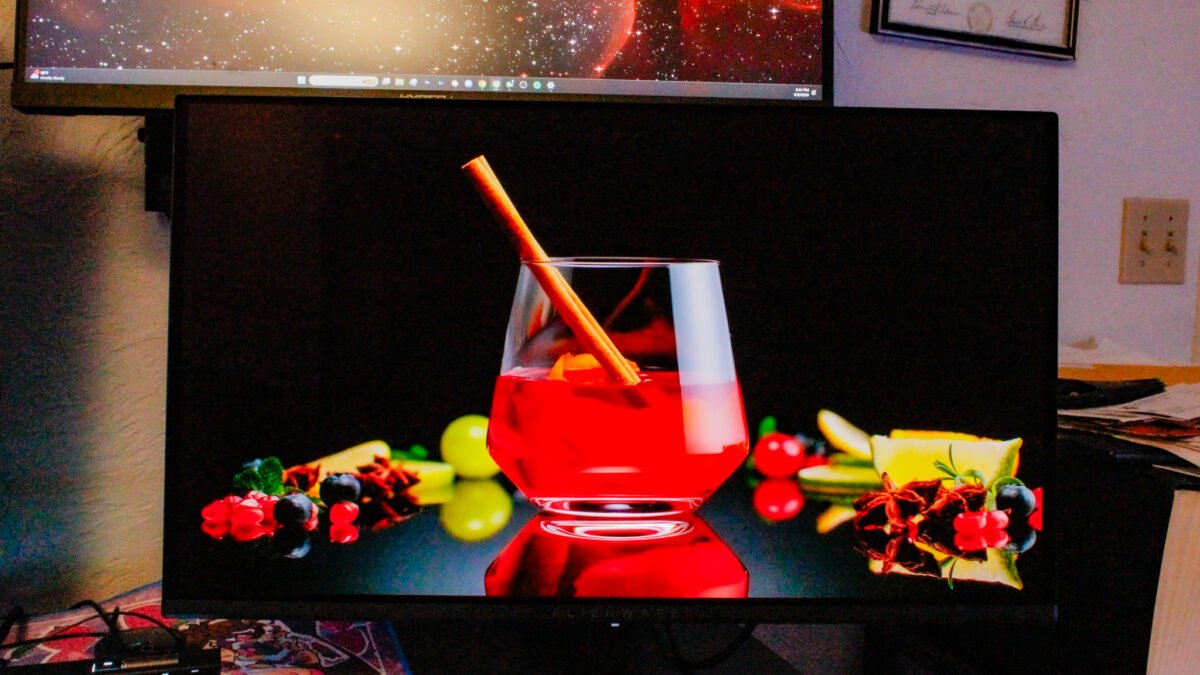
The Alienware 34-inch QD-OLED gaming monitor retails for about $750. While it offers a refresh rate of 240Hz and a response time of 0.03ms, it only supports a maximum resolution of 1440p and lacks built-in speakers or a headphone jack.
Also: This Micro RGB TV rivals pricier OLED models – and I’d recommend it, especially on sale
In contrast, the 32-inch Hisense A4 priced around $110 offers 4K resolution and DTS Virtual:X audio through dual integrated speakers. However, it has a maximum refresh rate of 60Hz, which is suitable for streaming but may not perform well for high-demand gaming.