 true77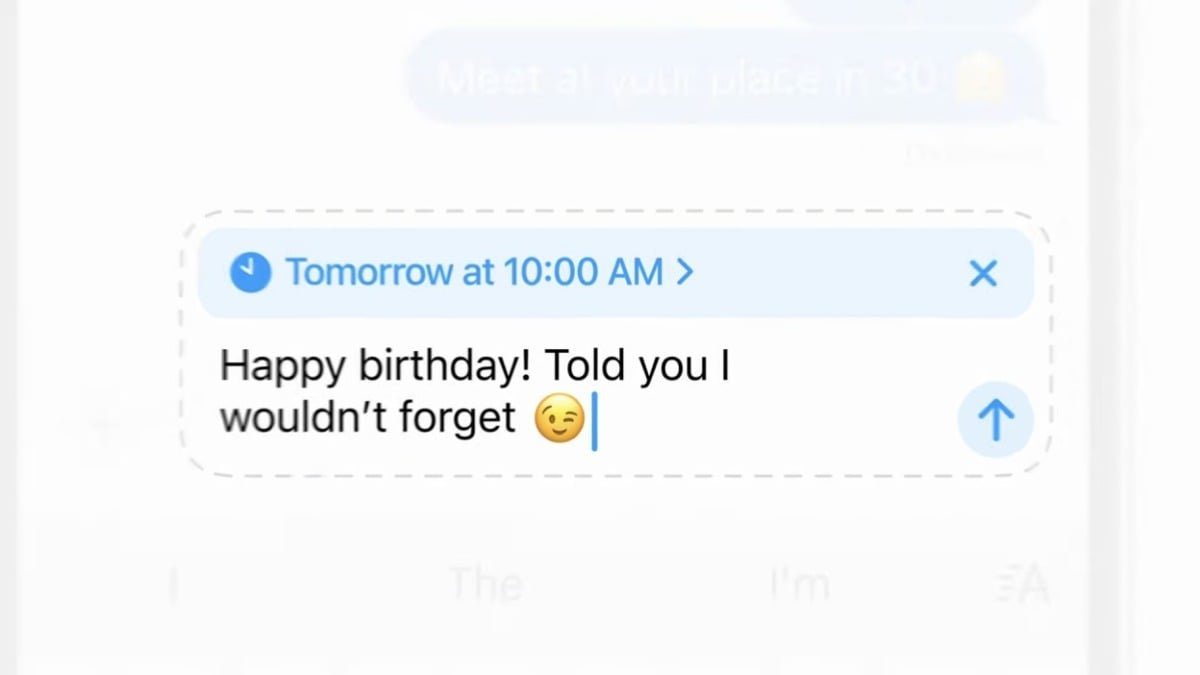
iOS 18’s new Send Later feature now allows you to schedule texts on your iPhone. While it’s not a completely new concept, with the Shortcuts app allowing for text scheduling, the new Send Later feature makes it easier than ever.
To schedule texts on your iPhone, you’ll need to update to iOS 18 beta. Keep in mind that this version may have some bugs, so be sure to back up your iPhone before installing. Once you have the beta version, follow these steps:
1. Go to Messages.
2. Choose an existing thread or compose a new message.
3. Hit the “+” button.
4. Select “More.”
5. Tap on “Send Later.”
6. Choose the date and time for the scheduled message.
7. Type your message in the “Send Later” field.
8. Hit the blue arrow button.
Your message is now set to send at the specified time. Never forget to send a birthday text again with the Send Later feature on iOS 18.